
Tasks and sending
A task is one piece of a job, on a day, for someone to do. When you send it, it goes out as an ordinary text message.
Create a task
Back to contents- On the Plan tab, tap New task.
- Which job? Pick the job this task belongs to. (No job yet? Create one in Jobs first.)
- What's the task? Write it the way you'd text it: "Demo the upper cabinets and cap the sink line." On a recurring job, the standing instructions are already filled in.
- Which day? Pick the day, and tap Set to add a time if it matters.
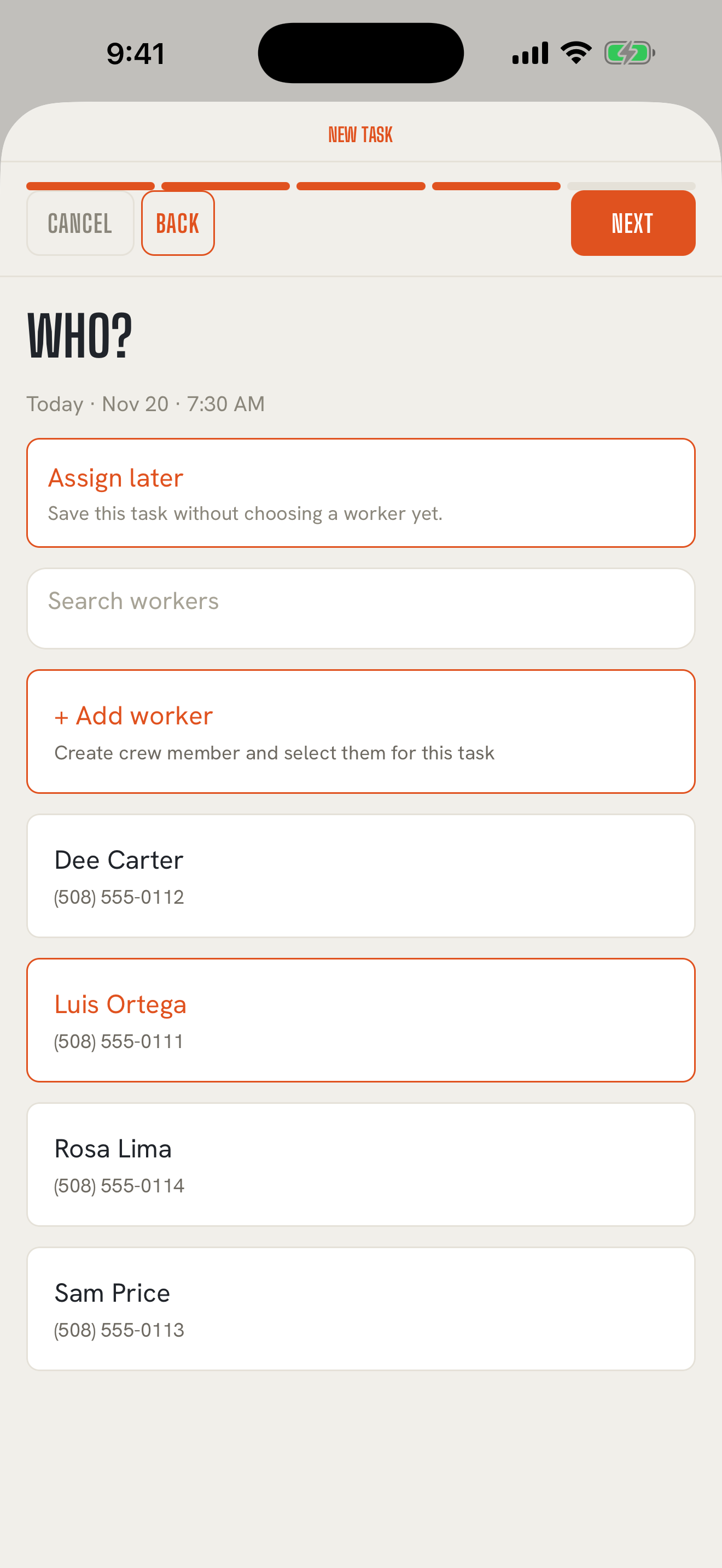
- Who? Pick one or more workers, or tap Assign later to leave it open for now.
- On the last screen, check the Message preview, then tap Send to send it now or Save to send it later.
You can also start a task from a job with Add task, or from a worker's page with Add task.
Add photos or videos
Back to contentsAttach up to five photos or videos to a task: the wall to open up, the bed to mulch, the breaker panel. Tap Attach media, then choose From this job to reuse photos and videos already on the job, Camera roll to pick from your library, or Take a photo or video. New ones are saved to the job too. They go out with the text.
Choose what goes in the text
Back to contentsOn the last screen, switches decide which details are added to the text:
- Day/time
- Address
- Customer (the customer's name)
- Phone (the customer's phone number)
- Notes (the job notes)
Everything except Phone starts switched on, and they start fresh on every task. A detail that's empty on the job, like a missing address, is simply left out. The Message preview shows exactly what your worker will read before you send anything.
Flag it for follow-up
Back to contentsWhen someone's on the task, you can tap Flag for me or Flag for team before you send, so it stays in front of you after it goes out. Follow-ups
Send on Core
Back to contents- Tap Send.
- Your iPhone's Messages app opens with your worker's number and the text filled in, photos attached.
- Check it, then tap the send arrow in Messages.
That's it. The text goes out from your own number over your own carrier, the same as any text you send. Your worker reads it on whatever phone they have.
Sending to more than one person? Messages opens once for each worker, one after another. Each person gets their own text, not a group text, so nobody gets "reply all" chatter.
TextMyTask never sends on its own. Nothing goes out until you tap send in Messages.
What "Sent" means
Back to contentsAfter you tap Send, the task shows as Sent on the board. On Core, TextMyTask hands the text to Messages, and from there it's your phone and your carrier. If you change your mind in Messages and cancel, the task still shows Sent, so just send it again when you're ready.
Every task card shows where it stands: Unassigned, Assigned, Sent, or Closed.
Save now, send later
Back to contentsA task doesn't have to go out the moment you create it.
- No one on it yet? It's Unassigned. Book the work when the customer calls; decide who's doing it closer to the day.
- Someone on it, not sent? It's Assigned and waits on the board until you send it.
When you're ready, tap the task on the Plan tab, tap Edit, add or change the worker, and send.
Change a task and send it again
Back to contentsPlans change. Tap the task, tap Edit, change the text, the day, the time, or who's on it, and send again. Each version you sent is kept on the task and the job's record, so you can always see what someone was told and when.
Quick messages
Back to contentsNot everything is a task. To send someone a quick note, open them in Workers or Customers, tap Message, type it, and tap Send message. It opens in Messages the same way and is kept with that person's history. Quick messages go out exactly as you type them, with no translation.