
Customers and workers
TextMyTask keeps two lists of people. Customers are who the work is for. Workers are who you send work to: employees, helpers, subcontractors, anyone you text about a job.
Add a customer
Back to contents- Open the Customers tab and tap Add.
- Type the name, or tap Browse Contacts to pull them from your iPhone's contacts.
- Add the phone, email, address, and any notes you want to keep. Everything except the name is optional for a customer.
- Tap Save.
The address matters: when you create a job for this customer, the job uses it, and you can add it to the texts you send.
Add a worker
Back to contents- Open the Workers tab and tap Add.
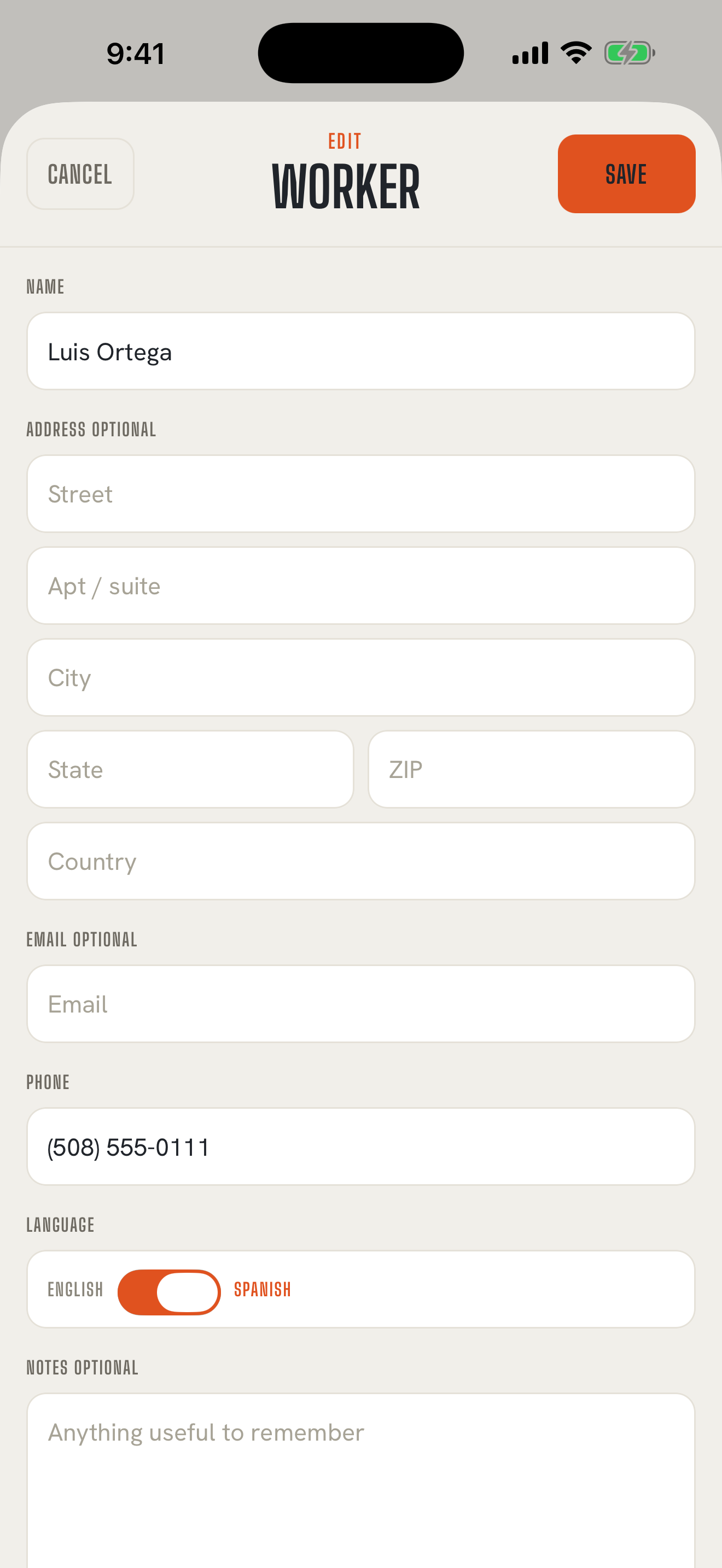
- Enter the name and mobile number, or use Browse Contacts. A worker needs a phone number so you can text them.
- Set their Language to English or Spanish. When you send a task to someone set to Spanish, the translation turns on by itself and you see both versions before anything goes out. How translation works
- Tap Save.
Your workers don't get a text, an invite, or a login when you add them. Nothing happens on their end until you send them work.
On Pro, adding someone new shows Save and send intro and Save without sending in place of Save. Introduce your crew
Importing from your contacts
Back to contentsBrowse Contacts opens your iPhone's contact picker. Pick one person and TextMyTask fills in their name, their first phone number, their first email, their first address, and the note on the contact. You can change anything before you save.
If TextMyTask isn't allowed to see your contacts, it tells you Contacts access is off and offers Open Settings so you can turn access on. You can always type the person in instead.
You can also add someone from a contact card. When a worker texts you a contact card, or you share one from the Contacts app, share it into TextMyTask. It asks you to Add As a Customer or a Worker, then opens the same form, filled in.
If the number is already in TextMyTask
Back to contentsWhen you add someone with a phone number that's already on a customer or worker, TextMyTask says who it looks like and asks whether to Update them or Create new. That keeps you from ending up with two entries for one person.
Someone who's both
Back to contentsA helper who also hires you for their own house can be on both lists. Each role is kept separately, so archiving them as a worker doesn't touch them as a customer.
What's on a person's page
Back to contentsTap anyone to see their details and their history with you.
- Workers: Message to send a quick text, Add task to give them work, and Sent to this worker, a list of what you've sent them.
- Customers: Message, Alert customer to send a heads-up about scheduled work (available once they have an active job), Messages with this customer, and their photos. You can add photos for a customer right on their page.
Notes on a person are for you. They're never sent to anyone.
Changing someone's details
Back to contentsOpen the person and tap Edit. Jobs keep the customer details from when each job was created, so changing a customer's address today doesn't rewrite the jobs you already have, including an ongoing recurring job. If the work moves to the new address, create a new job for it. Why records work this way