Getting started
Setup takes a few minutes. You need an iPhone running iOS 16.4 or later and an email address. Your crew needs nothing.
Download and open the app
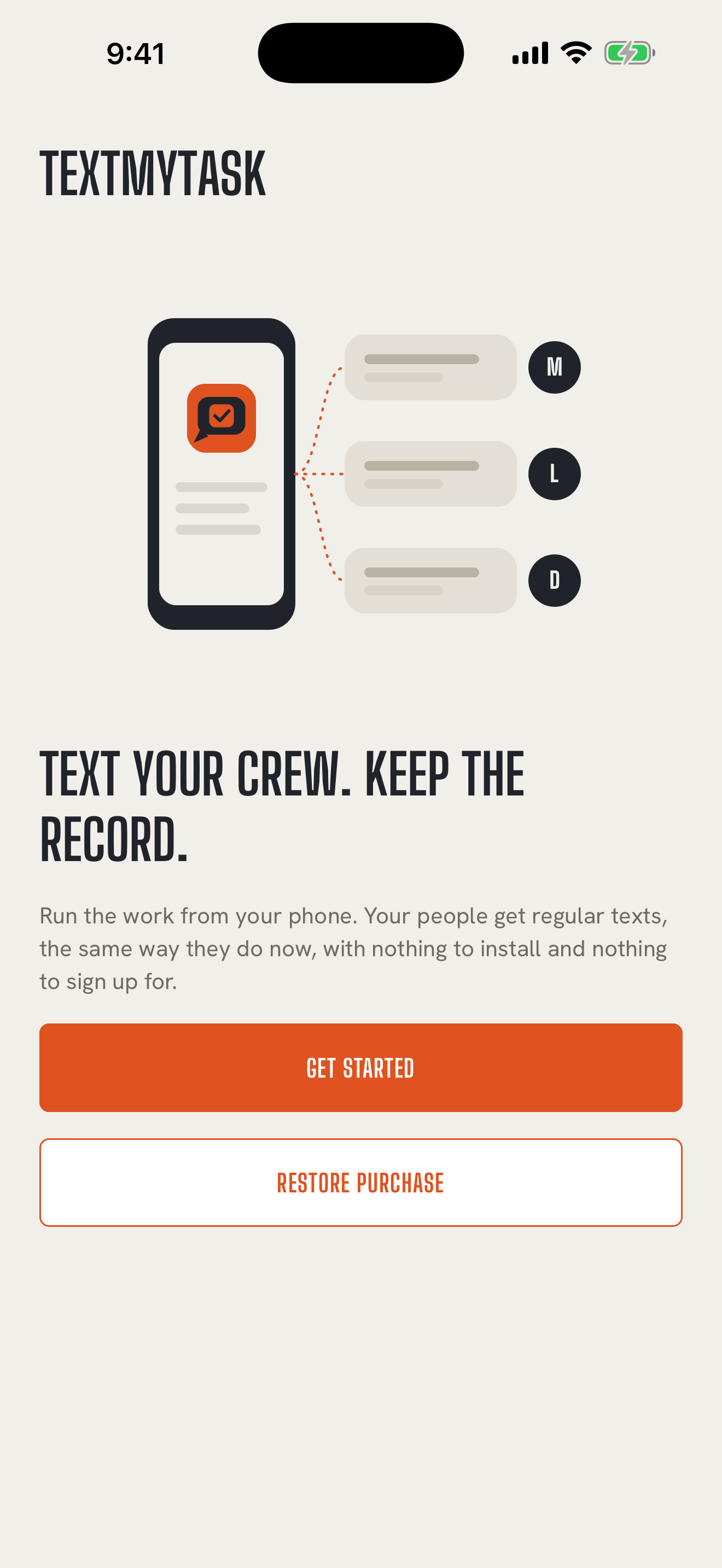
Back to contentsGet TextMyTask from the App Store and open it. You'll see the welcome screen with two buttons:
- Get started if you're new.
- Restore purchase if you've subscribed before on this Apple Account. TextMyTask checks with Apple and picks up your subscription.
Answer four quick questions
Back to contentsTextMyTask asks four questions, one per screen. Each one has a Skip button.
- What kind of work do you run? Contractor / renovation, Landscaping, House cleaning, Plumbing, Electrical, or Something else.
- How many people do you send work to? Count everyone: full time, part time, or now and then.
- How do you send out work today? Text messages, phone calls, paper or in person, or a little of everything.
- Does anyone on your crew prefer Spanish? TextMyTask can translate what you send into Spanish right on your phone.
Your answers shape the short tour that comes next, so the examples look like your kind of work.
Take the tour
Back to contentsThree screens show the whole idea: plan the work in one place, send it as a regular text, and keep replies with the job.
Then choose Start with Core, or tap Tell me about Pro first if you'd like to hear about texting from a dedicated Pro number. Either way, every subscription starts with Core. About Pro
Accept the terms
Back to contentsReview the Terms of Use and Privacy Policy, then tap Accept and continue. By accepting, you confirm that the people you'll text have agreed to hear from you. For most crews, that's simply the people you already text about work.
Pick a plan
Back to contentsChoose Monthly ($29.99) or Annual ($299.99). If you're eligible for the free week, the screen shows the offer and the button reads Start your free week. Apple shows the trial and the price again before you confirm with Face ID or your passcode, the way you would for any App Store purchase.
Add your email
Back to contentsThe last screen asks for your email. It's your account ID, and it's how we reach you about your account and subscription. We don't use it for marketing unless you ask us to. Tap Finish and you're in.
Find your way around
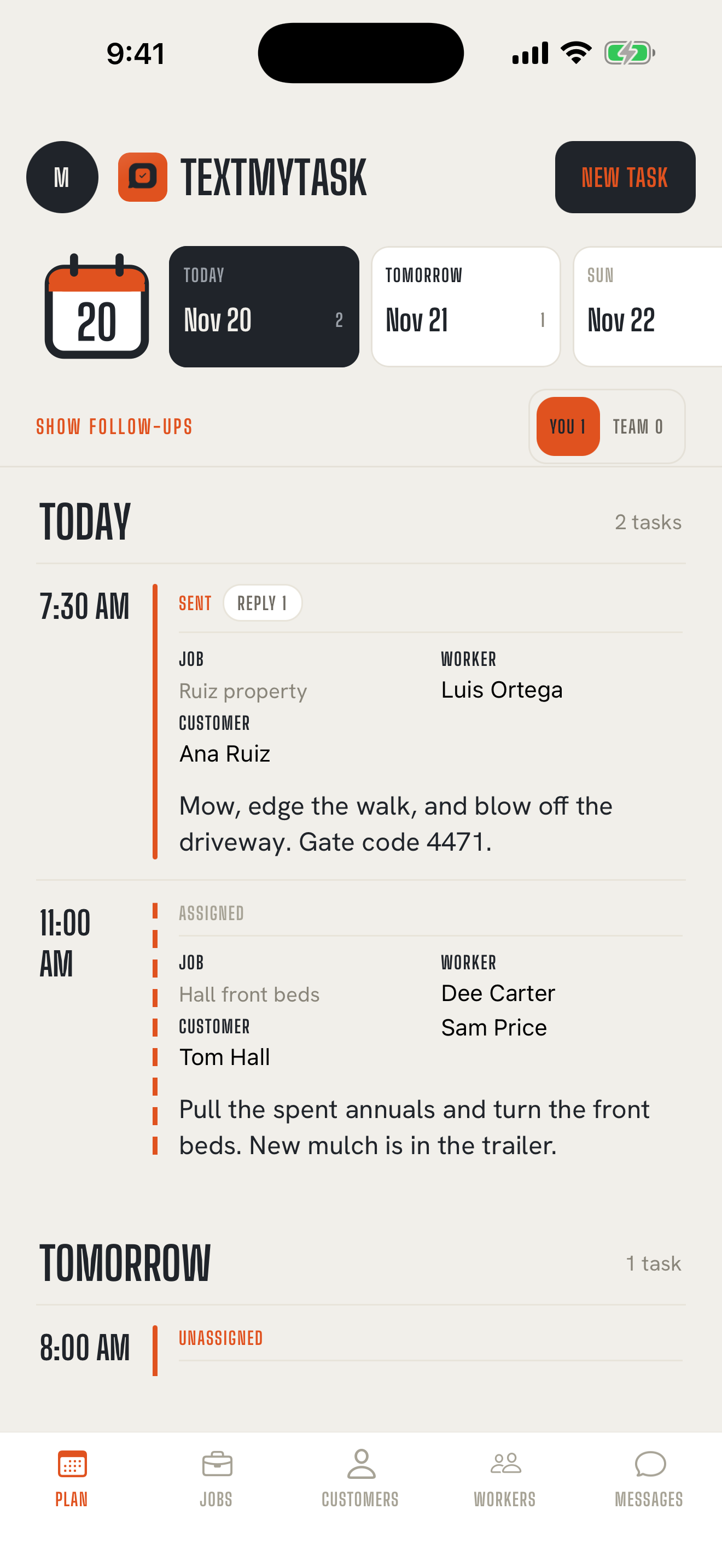
Back to contentsYou land on the Plan tab with an empty board, ready for your first job. Along the bottom are five tabs:
| Tab | What's there |
|---|---|
| Plan | Your days, with every task and who's on it. Start here each morning. |
| Jobs | Every job, with its full history. |
| Customers | The people you do work for. |
| Workers | The people you send work to. |
| Messages | Texts and photos you've shared in from Messages. Each one is marked NEEDS JOB until you file it, then FILED. |
The round button at the top left of any tab opens Account: your subscription, Manage Subscription, Move to Pro, Restore Purchases, your name and email, the legal links, Send Feedback, and Delete Account. Add your name there and the round button shows your initial.
Next
Back to contentsAdd your first customer and worker, then set up your first job and task.