
The Plan board
Plan is where your day starts. It shows your days in order, each with its tasks: the job, the customer, what's being done, the time if there is one, and who's on it.
Moving around
Back to contents- Scroll down to look further ahead. Tap Load more at the bottom to add two more weeks.
- Tap a day in the strip across the top to jump to it. Each day shows how many tasks it has.
- Tap the calendar button at the start of the strip to pick any date, past or future. Tap Today to come back.
- Pull down to refresh.
Within a day, tasks are listed by time, with untimed tasks after the timed ones.
What the cards tell you
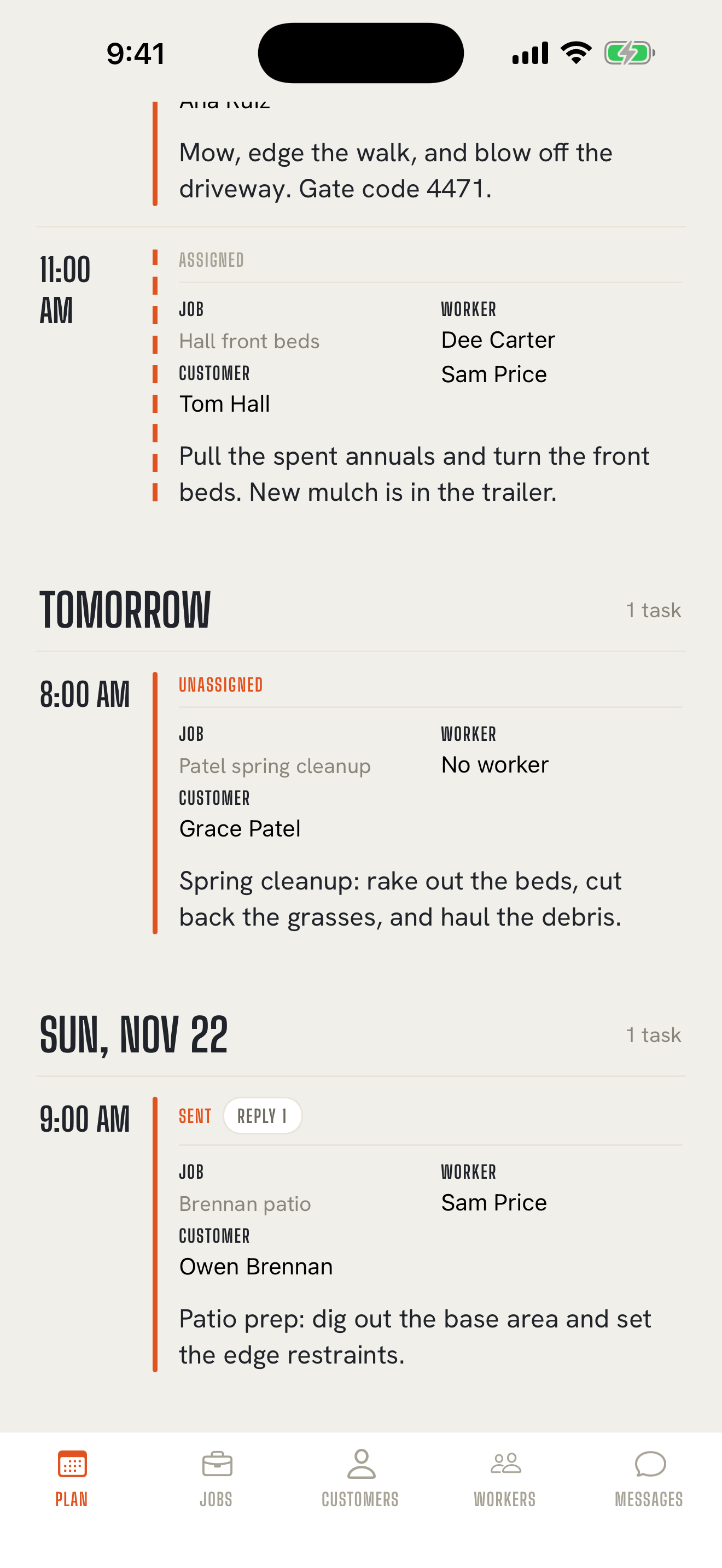
Back to contentsEach card is one task. It shows the time, the Job, the Customer, the Worker, the task itself, and where it stands:
- Unassigned: no one on it yet.
- Assigned: someone's on it, but it hasn't been sent.
- Sent: it's gone out.
Once a text is on its way, the card can also read Sending or, if a text didn't go through, Not delivered with a warning sign. Open the task to see why.
Photos that went with the task show as a Photos count, and replies you've filed to the task show as Reply 1 or Replies with a count.
When you close a task, it comes off the Plan board. You'll find it on the job's page. Closing tasks
Do things from the board
Back to contents- Tap a task to open it: edit it, send it, send it again, alert the customer, or close it.
- Tap New task to add one.
- Tap a recurring visit to turn it into a real task you can send. Recurring jobs
Updates at the top
Back to contentsWhen something needs your attention, such as a Pro text that's waiting on someone's YES, a single line appears at the top of the screen. If there's more than one, it reads N updates; tap it to see them all. Tap the × or swipe the update sideways to dismiss it.
Follow-ups
Back to contentsAnything you flag for follow-up collects in the follow-ups bar on the Plan tab, just under the day strip, with a count for You and a count for Team, so nothing slips through. Tap Show follow-ups to open it. Follow-ups