
Pro
Pro gives you a dedicated Pro number: a texting number we set up and register with the carriers for your business, separate from your own phone number. Texts go out from inside TextMyTask, and replies come straight back into the app, already matched to the person who sent them.
Pro is an upgrade for Core subscribers. Everything in Core keeps working the same way.
What changes with Pro
Back to contents| Core | Pro | |
|---|---|---|
| Texts come from | Your own iPhone number | Your Pro number |
| Sending | Messages opens; you tap send | Sends from inside TextMyTask |
| Replies | Arrive in Messages; you share them into TextMyTask | Arrive in TextMyTask by themselves |
| Who sent it | You pick | Already matched |
| Which job | You pick | You pick, with a suggested job |
| Monthly texts | No app limit | 2,000, plus top-ups |
| Price | $29.99/mo or $299.99/yr | $99.99/mo or $999.99/yr |
What setup needs
Back to contentsCarriers require every business that texts from its own number to register first. Here's what that takes:
- An active Core subscription.
- A registered business with an EIN (your federal tax ID), issued at least 10 business days before you register. If yours is newer, the app shows the date you can continue, and no payment is taken while you wait.
- A few details about your business for the carrier registration.
- A wait for carrier review. Your number can't send until carriers approve it. Core keeps working the whole time.
No EIN yet? The app asks how your business is set up and tells you what's needed. Your answers are saved, so you can pick up where you left off. Pro isn't open to unregistered sole proprietors yet; the app saves your interest.
Set up Pro
Back to contents- Open Account and tap Move to Pro.
- Tap Continue with Apple. This keeps your Pro number and messages tied to you, on any phone.
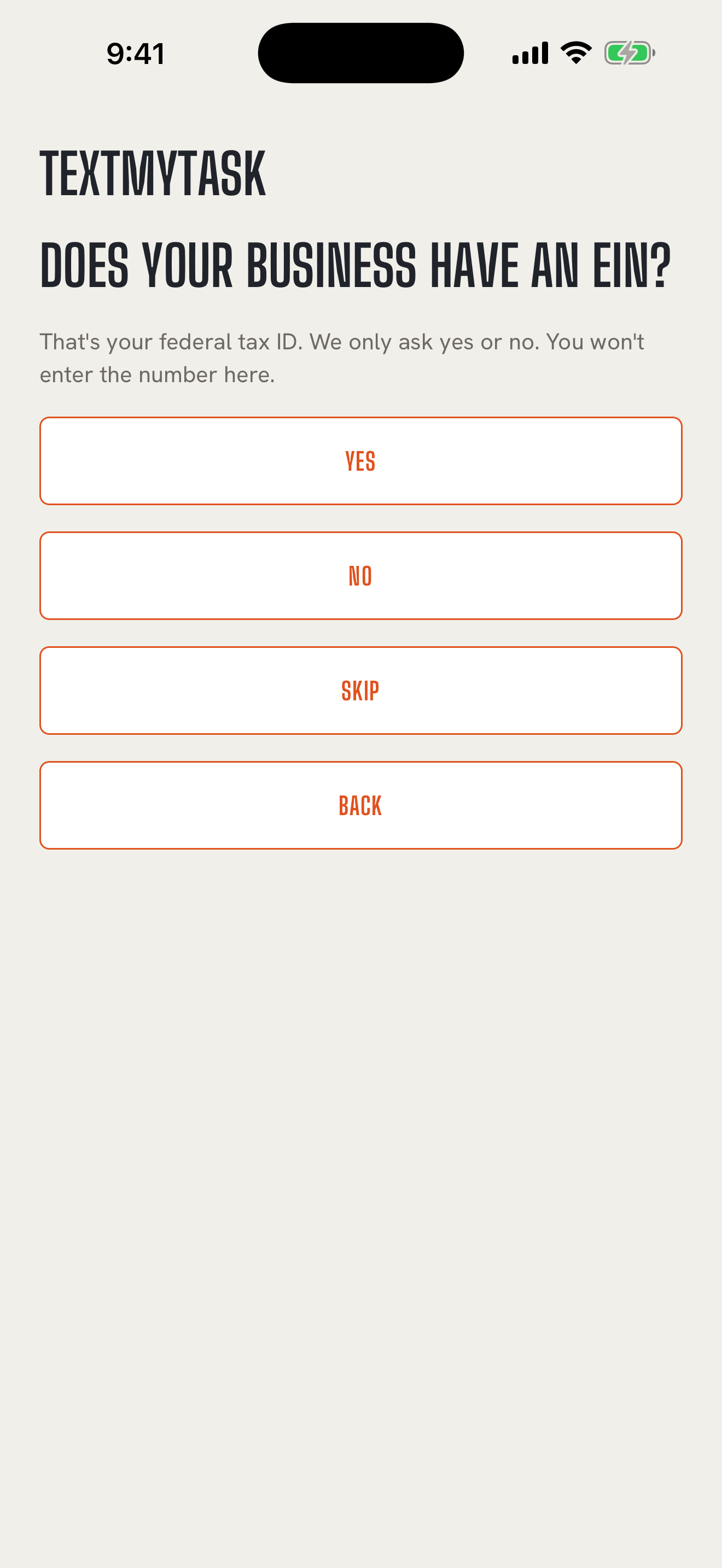
- Answer Does your business have an EIN? and When was your EIN issued?, then tap Continue. The app shows Your EIN is ready for registration when you're good to go.
- Tap Continue to business details. Copy the details from your IRS EIN letter, tap Save, then tap Save business details.
- Check everything on Review your business details. Tap Edit to fix anything.
- Tap Purchase Pro Monthly or Purchase Pro Yearly. Each button shows its price.
Pro billing starts when you purchase. There's no free trial. Pro replaces your Core plan rather than adding to it, so you pay for one subscription. Apple refunds the unused part of your Core period to your original payment method. Core features keep working while setup finishes.
Then TextMyTask registers your business with the carriers and sets up your number. We look for a local number in the same area code as your business phone, and pick another local number if none is available there. Follow along under Pro setup in Account. It shows where things stand:
- Finish your Pro registration: tap Continue to pick up where you left off.
- Under review: we're checking your details.
- Submitted to carriers: your registration is with the carriers.
- Approved: preparing your number
- Setting up your number
- Your number is ready: tap Finish Pro setup and continue with the Apple Account you used to register.
- Ready: Pro is active.
If something needs sorting out, it shows We need to talk with you, and we email you at your business email. Nothing is needed from you until then. Tap Refresh setup status any time to check again.
When your number is ready, we also email you the number and the steps to finish setup.
New phone? Open Account, tap Reconnect Pro, and sign in with the same Apple Account to bring your Pro number and messages with you.
Introduce your crew
Back to contentsBefore your Pro number can text someone, they need to agree to get texts from it. TextMyTask writes a short introduction from your business. When they reply YES, they're set.
Nothing sends until you say so:
- When your number is ready, open Introduce your crew (in Account, and at the top of the Workers tab).
- Your crew and your customers are listed. People you've texted in the last 90 days who still need an intro are already checked. Check or uncheck anyone.
- Tap Send intros. The button shows how many will go out. Not ready? Tap Skip for now.
Adding someone new on Pro? The form reminds you to ask first: "Is it OK if we text you about work at this number?" Then choose Save and send intro, or Save without sending to introduce them later.
Where each person stands
Back to contentsEach worker and customer shows one of four statuses:
- Needs consent: no intro sent yet. Tap Send intro.
- Waiting for YES: the intro went out (the status shows when); they haven't replied yet. 24 hours after the last intro you can tap Resend intro.
- Cleared: they said YES (the status shows the date). Send away.
- Opted out: they replied STOP. TextMyTask won't text them. If they change their mind, they can text START to your Pro number. That puts them back to Needs consent, so send a fresh intro and wait for their YES.
Sending to someone who hasn't said YES
Back to contentsBefore you send, the task shows who hasn't said YES yet: "Sam hasn't replied YES yet. This job won't go to them." If you send anyway, TextMyTask holds Sam's copy and tells you: "Not sent to Sam. Waiting for YES." It offers Send intro if they haven't had one. When they reply YES, a notice asks "Sam said YES. Send the held job?" Tap Send job to send it. TextMyTask never sends it for you.
Replies on Pro
Back to contentsReplies to your Pro number come straight into the Messages tab, matched to the person who sent them. You pick the job they belong to, the same as on Core. When the sender is matched, TextMyTask shows the job you last texted them about as a Suggested job. Tap File to suggested job if it's right, or file it yourself. Filing
If a text comes from a number that isn't in TextMyTask, belongs to someone archived or deleted, or matches more than one person, TextMyTask doesn't guess. It asks Who sent this? and you pick.
New replies get a New Pro reply notification with the text of the message, and the Messages tab and app icon show how many are unread. To answer someone, open their message and tap Reply.
Your monthly messages
Back to contentsPro includes 2,000 messages a month, counting texts you send (intros included) and replies that come back. The count starts over on the 1st of each month; unused messages don't carry over.
- When you get down to 400 left, a small notice at the top of the screen shows "400 messages left this month." It stands out more at 250, 100, 50, and 25. Tap it to open Your monthly messages, with your count and reset date. Tap Dismiss to hide it until the next step down.
- Need more? Tap Buy 500 more messages to add 500 messages for $9.99, good through the end of that month.
- If you run out, the notice changes to Out of messages until your reset date. Sending from your Pro number pauses until the count resets or you add more. You can still save tasks, and the Send button becomes Buy 500 messages.
- Replies still come in. The first time each person texts you after you run out that month, they get one short automatic reply saying their message came through. Nothing about your account or your message count is ever shared with them.
If Pro ends
Back to contentsTo go back to Core, choose Core in Settings, under your name and then Subscriptions, or tap Manage Subscription in Account. Apple keeps you on Pro until the end of the period you paid for, then switches you to Core, and TextMyTask goes back to sending from your own phone.
To stop entirely, cancel the subscription there instead. Pro keeps working until the end of the period you paid for, and then your subscription ends.
After Pro ends, your Pro history is read-only for six months: you can still read it, archive it, or delete it, and renewing Pro lets you send from your Pro number again. Before anything is released, the app shows a notice with the date, and nothing is deleted without warning.
Questions about Pro
Back to contentsSee the Pro section of the FAQ.