
Jobs
A job is the work you're doing for a customer. Every task, the texts you send for it, the replies you file to it, its photos, and its customer updates connect back to the job, and the job keeps it all in order.
Tasks always belong to a job, so you create the job first.
Create a job
Back to contents- Open the Jobs tab and tap Add.
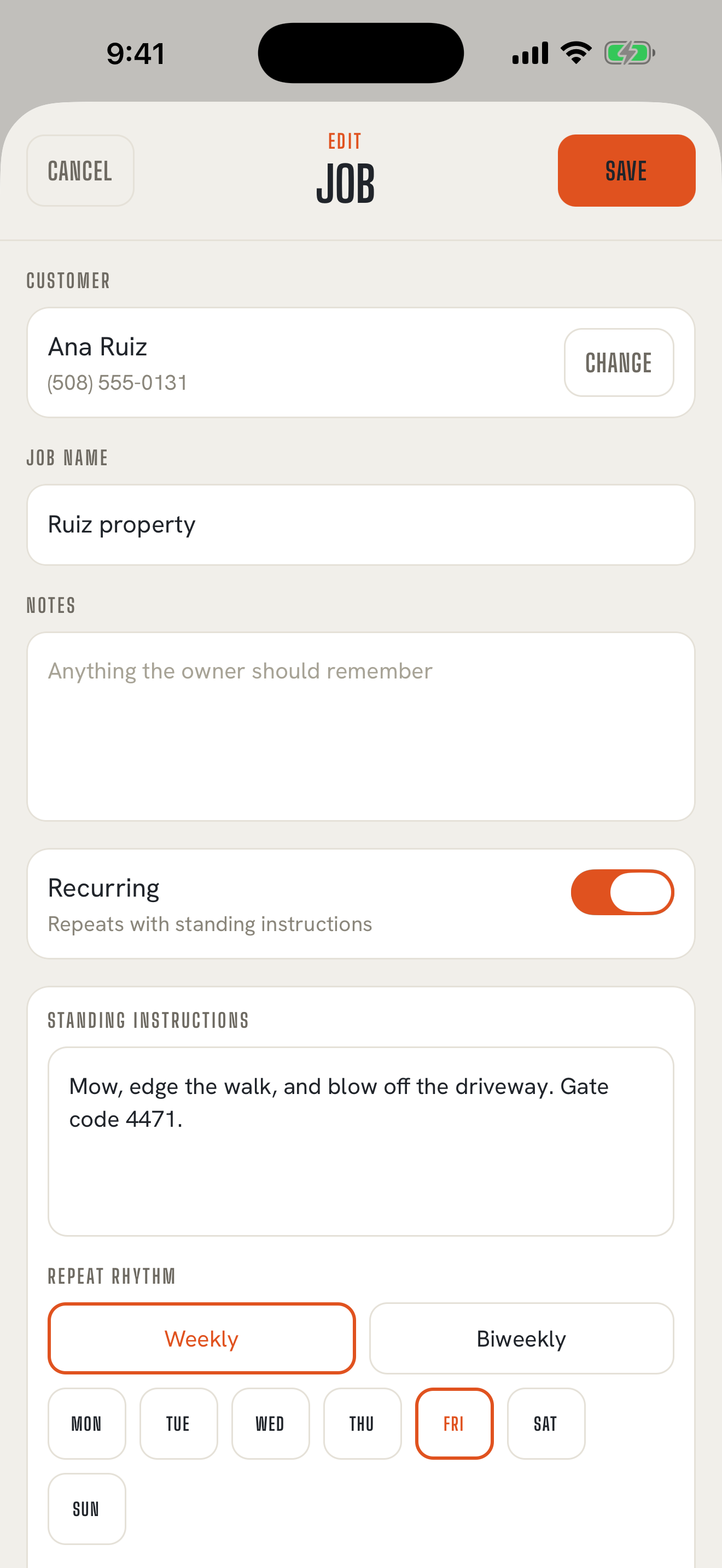
- Under Customer, tap Choose and pick the customer. No customer yet? Tap + Add new customer right there, or add one first.
- Give the job a Job name you'll recognize: "Henderson kitchen," "Ruiz weekly mow," "Okafor bath remodel."
- Add Notes if the job needs them.
- If it repeats, turn on Recurring and fill in the Standing instructions, the Repeat rhythm (Weekly or Biweekly), the day, a time if you want one, the Start date, and the Default crew. Recurring jobs
- Tap Save.
The job uses the address on the customer's record, so get the address right on the customer first.
Notes or standing instructions?
Back to contentsBoth are text you write once on the job. They do different things.
Notes are the job's general information for the crew, such as "Permit is on the fridge" or "Park on the street, not the driveway." When you send a task, the job notes go into the text unless you switch Notes off for that send. Anything just for you belongs in the notes on the customer, which are never sent.
Standing instructions come with a recurring job. They're what the crew should do every visit, such as "Gate code 4471. Blow off the driveway last." They fill in the task text for each visit automatically, so you don't retype them every week.
The job page
Back to contentsTap any job to open it. At the top are the job's details: the customer, the address, and the notes. A recurring job also shows its rhythm, default crew, and standing instructions. Add task puts a new task on this job. Below that:
- SCHEDULED: tasks for this job that haven't gone out yet, plus the upcoming visits of a recurring job.
- HISTORY: everything that's happened on the job, in date order. Reading the job record
- CLOSED: tasks you've closed, tucked away until you tap Show.
If the job has a customer, Alert Customer lets you send them a heads-up about upcoming work. Customer updates
Job details stay true to history
Back to contentsWhen you create a job, it keeps its own copy of the customer's name, phone, and address. If the customer moves or changes their number later, old jobs still show what was true when you did the work. Your records don't quietly change underneath you.
That copy is also what goes into the texts for that job. If a customer moves and the work moves with them, create a new job for the new address.
Finding a job
Back to contentsThe Jobs tab lists your active jobs alphabetically. Type in Search jobs to find one by job name or customer name. Archived and Recently Deleted are at the bottom of the list. Archive and delete