
Customer updates
Let a customer know who's coming and when, without writing it from scratch.
Send a heads-up
Back to contents- Tap Alert Customer on a job or on a task, or open the customer in Customers and tap Alert customer.
- Under Choose days, pick the day or days of work to cover, then tap Draft.
- TextMyTask writes a draft from the open tasks for that customer on those days.
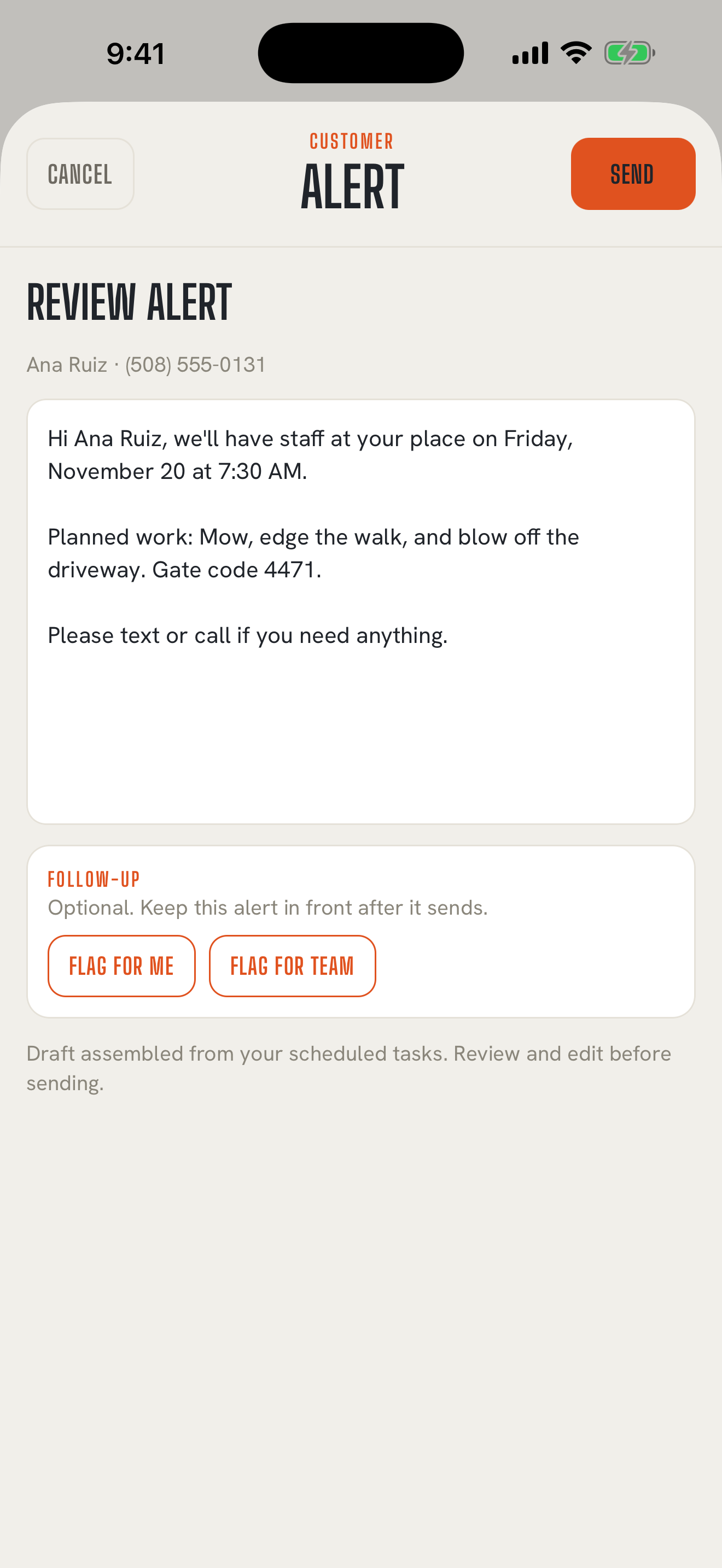
- Read it under Review alert. Change anything you like.
- Tap Send. On Core, it opens in Messages like any other text, and you tap send.
The heads-up is kept on the job's history as a CUSTOMER ALERT, with the days it covered, and on the customer's page too.
Who writes the draft
Back to contentsOn iPhones with Apple Intelligence (iOS 26 or later, with Apple Intelligence turned on), the draft is written right on your phone by Apple's on-device model. It's labeled AI-generated draft. Review and edit before sending.
On other iPhones, you get a clean draft built straight from your schedule, labeled Draft assembled from your scheduled tasks. Review and edit before sending.
Either way, the draft is written for the customer: it leaves out crew instructions and only mentions the days you picked. If an on-device draft slips in a date you didn't pick, TextMyTask sets it aside and gives you the schedule draft instead. Nothing goes out until you send it.
Flag it for later
Back to contentsWant to check back after it goes out? Under Follow-up, tap Flag for me or Flag for team before you send. Follow-ups
In Spanish
Back to contentsIf the customer's language is set to Spanish, the heads-up is translated before it goes out, and you see both versions first. Spanish translation
Customers can reply
Back to contentsIf a customer texts back, share the reply into TextMyTask and file it the same way as a crew reply. On Pro, replies arrive in TextMyTask by themselves. Once it's filed to the job, it shows on the job's history as RECEIVED FROM CUSTOMER. Replies and filing