
Replies and filing
Your crew replies the way they always do: a photo, a word, a question, or nothing. Replies are always optional. When one belongs with a job, you file it, and it becomes part of that job's record.
This page covers Core, where replies come to your own Messages app. On Pro, replies arrive in TextMyTask by themselves. Replies on Pro
Share a text into TextMyTask
Back to contents- In Messages, open the conversation and press and hold the text you want.
- Tap Share. If you don't see Share right away, tap the arrow at the end of the menu to see more choices.
- Choose TextMyTask from the row of apps.
Share a photo or video
Back to contents- In Messages, tap the photo or video to open it.
- Tap the Share button.
- Choose TextMyTask.
Share several photos at once and each one comes in as its own item. TextMyTask opens the filing screen for each one in turn, so you can file them all to the same job in a few taps.
Don't see TextMyTask in the row of apps? Scroll the row to the end and tap More, then turn on TextMyTask. You only do this once. More fixes
File it
Back to contentsWhen you share something in, TextMyTask opens the filing screen.
- Who sent this? Pick the person. Search by name or number, choose from the people you've texted most recently, or browse Workers or Customers. Not in TextMyTask yet? Tap + Add worker or + Add customer right there.
- Which job? For a worker, you'll see the jobs you've given them tasks on. For a customer, you'll see their jobs. Pick one, or tap File without job.
- Which message is this replying to? Optional, and only for a worker you've texted on that job. Pick the text the reply answers, or tap Not sure / skip.
- Add a note? Optional. You can also tap Flag for me or Flag for team to keep it in front of you. Follow-ups
- Tap File to job. If you didn't pick a job, the button says File to sender, and you can connect a job later.
The reply now shows in that job's history, with the date and the person who sent it.
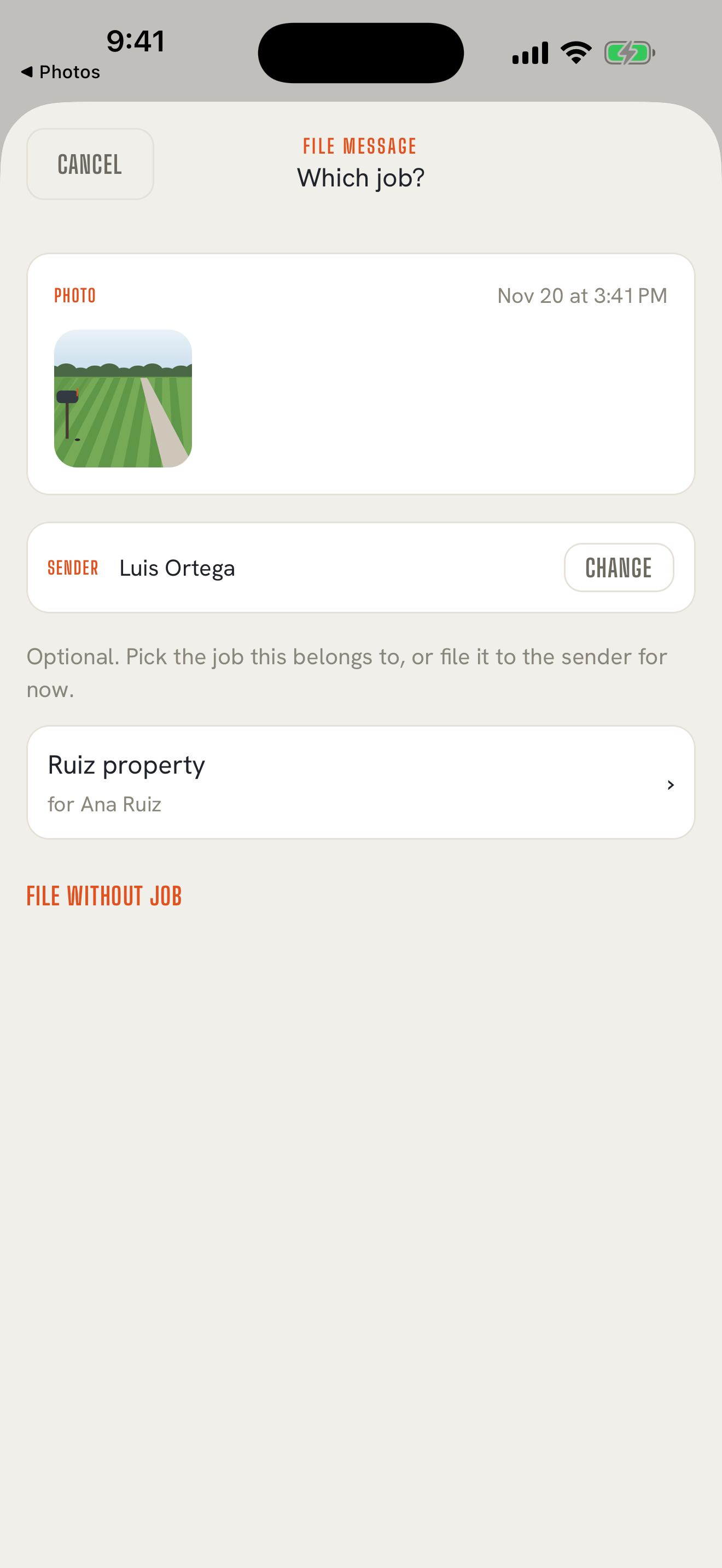
Why you pick the sender
Back to contentsWhen you share something out of Messages, iPhone passes along the text or photo but not who sent it. So TextMyTask asks. It's one tap, and it means the record is always right. TextMyTask never guesses.
Not ready to file it?
Back to contentsTap Cancel on the filing screen and the item waits in the Messages tab, marked NEEDS JOB. Open it and tap File message whenever you're ready. Swipe left on an item to Archive or Delete it instead.
Items you've filed stay in the Messages tab too, marked FILED with the job's name, so you can always find what came in.
Fix a filing mistake
Back to contentsFiled something to the wrong job or the wrong person? Open the reply from the job's history, or from the Messages tab, and tap Edit filing to change it.
Contact cards
Back to contentsIf you share a contact card into TextMyTask, it isn't filed as a reply. Instead, TextMyTask asks you to Add As a Customer or a Worker and fills in the form for you.
A reply never closes a task
Back to contentsA photo of a finished deck doesn't close the task. Neither does "done." TextMyTask files what you tell it to file and never decides what a reply means. You close tasks yourself. Closing tasks